Login procedure, Login node
Info
The command line examples on this page use the following notation
[login]$ : login node
[rNnN]$ : compute node
[login/rNnN]$ : login node or compute node
[yourPC]$ : environment from which the login node is connected
FAQs about Login Using SSH Authentication
Cannot login to TSUBAME4.0 (ssh, Permission denied (publickey,hostbased) etc.)
Please refer the following checklist before contacting us for help.
1. Is your account name correct?
Please confirm you are using TSUBAME4.0 account.
- TSUBAME4.0 account is different from TSUBAME3 account. We are receiving an increasing number of inquiries using TSUBAME3 accounts.
- Your TSUBAME4.0 account is different from your student number or faculty and staff number.
- Do you have a TSUBAME4.0 account? For information on obtaining an account, please refer to How to obtain an account.
2. Did you registered a public key in correct format?
Please confirm that you have registered a public key in OpenSSH format to TSUBAME portal.
You can not login to TSUBAME3 if you registered a public key in PuTTY format.
Please refer to the following links for how to create a key pair.
Please refer to the following for how to register the public key.
Info
TSUBAME4.0 login node cannot be connected with RSA key (SHA-1). ecdsa key or ed25519 key is recommended.
3. Is the command you entered correctly? ( for Linux / Mac / Windows(Cygwin) )
Please make sure your login name and path to your private key file (*) are specified in the command line correctly.
[yourPC]$ ssh <TSUBAME4 account>@login.t4.gsic.titech.ac.jp -i <private key>
Example) When your login name is gsic_user and the location of a secret key is ~/.ssh/t4-key,
[yourPC]$ ssh gsic_user@login.t4.gsic.titech.ac.jp -i ~/.ssh/t4-key
Tips
If your private key file is stored in one of the following locations under your home directory (the case that you have not modified the location from the default value), you can omit "-i
.ssh/id_rsa, .ssh/id_dsa, .ssh/id_ecdsa, .ssh/id_ed25519
Info
TSUBAME4.0 login node cannot be connected with RSA key (SHA-1). ecdsa key or ed25519 key is recommended.
Please refer to the following man command for options of ssh command.
[yourPC]$ man ssh
4. Does the symptom reproduce in another terminal environment?
There are various types of terminal software for Windows.Please check whether it reproduces even with another terminal software.
If not reproduce, it may be a software-specific problem.In that case we can not respond to your inquiries, so please understand.
5. Do the symptoms reproduce with different network?
There may be a problem with the network from which you are accessing the site and you may not be able to connect.
If there are multiple access routes, change the access source and see if the problem reproduces itself.
- On campus/off campus
- Lab/other labs
- Home/public WiFi
If the connection status changes when the network is changed, there may be a problem with the router, firewall, or other settings. Please check the settings with your administrator.
Also, in the case of Windows, security software may be blocking communication. Please temporarily turn off your security software and see if you can connect. Please refer to the manual of your security software for the workaround.
If you do not solve any of the above solutions, please contact us with the following information.
-
Operating System you use (Example: Windows11,Debian13,macOS 26)
( We only accept Operating System within the officially supported range. ) -
Terminal software and the version (Cygwin, PuTTY, Rlogin and so on)
For details on how to check the version, please refer to the terminal software manual.
For Linux / Mac OS, please send SSH version. You can check with the following command.
[yourPC]$ ssh -V
- The operation you tried. If you get an error, please send the details.
For Linux / Mac OS, please send the output of ssh command with -v option (debug mode) including the command line itself.
Example) When an account name is tsubame_user and the location of a secret key is ~/.ssh/t4-key,
[yourPC]$ ssh tsubame_user@login.t4.gsic.titech.ac.jp -i ~/.ssh/t4-key -v
Available SSH client on Windows
The following SSH clients on Windows are available to connect TSUBAME.
PuTTY
PuTTY is a free SSH Client software. Please refer to this article to generate the SSH key.
MobaXterm
This software includes an SSH client and an X11 server.
Most X11 applications on TSUBAME seem to work fine.
Please refer to this article to generate the SSH key.
OpenSSH client (Windows 11 functionality)
OpenSSH client can be installed via [System]-[Manage optional features] section in Settings app.
(Depending on the Windows version, the location of menu items may differ.)
ssh, ssh-keygen, etc commnads(same as linux) are available after the installation.
Window Subsystem for Linux 2 (WSL2)
Linux environments can be constructed on Windows by downloading Linux distribution(such as Ubuntu, OpenSUSE) from Windows 11 store.
ssh, ssh-keygen commands are available from that.
In addition, by using WSL2, X11 applications using the Windows Subsystem for Linux GUI (WSLg) can also be used.
Cygwin
Cygwin provides a pseudo-Linux environment on Windows.
ssh, ssh-keygen commands are available from that. We strongly recommend using other software.
How to create an SSH key pair using PuTTY or MobaXterm
Warning
If your SSH private key is leaked, your account will be misused by the third-party. Please secure your private key with setting the passphrase.
Info
TSUBAME4.0 login node cannot be connected with RSA key (SHA-1). ecdsa key or ed25519 key is recommended.
This article describes how to create SSH keypair to be used TSUBAME3 using PuTTYgen, which will be installed with PuTTY. MobaKeyGen from MobaXterm has the same functionarity and UI.
You will get a dialog similar to this by executing PuTTYgen:
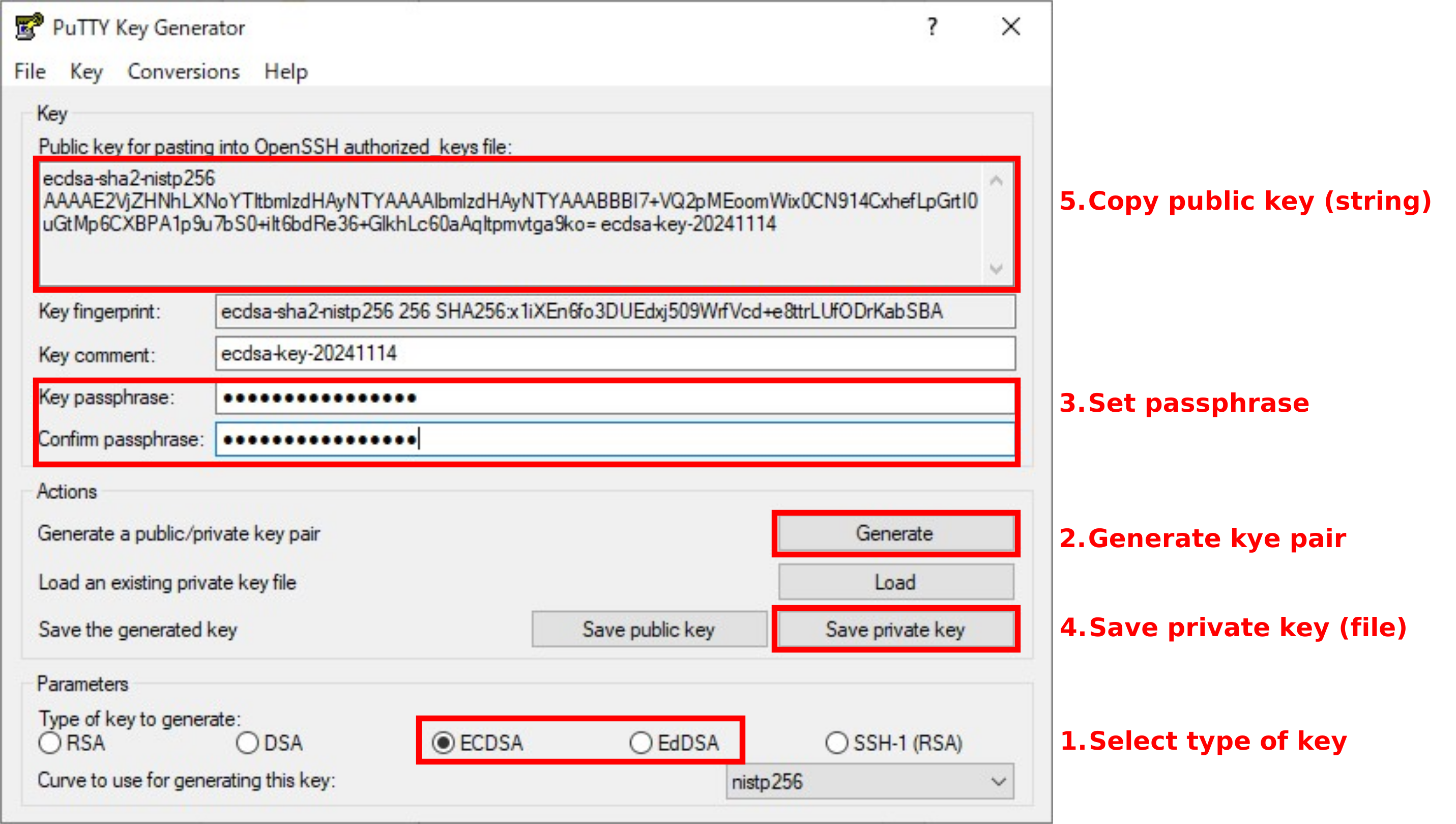
- Select the key type in "Type of key to generate".
ECDSA or EdDSA format is recommended. For other formats, you may not be able to connect to TSUBAME4.0. - Press "Generate" to create SSH key-pair
You can adjust key-pair configurations using "Parameters" box, but you don't have to do so in most cases. - Enter your passphrase in the “Key passphrase” and “Confirm passphrase” fields to prevent others from using TSUBAME4.0 without permission.
The specified passphrase will be used when you login. - Press "Save private key" to save a private key file of generated key-pair for future login.
After registering public key to TSUBAME4.0, anyone who can read this private-key file can log in to TSUBAME4.0 with your account.
Please keep this file safe, DO NOT carry with USB stick, or send via e-mail etc. Private keys must not be shared with others. - Copy the string (public key) shown in “Public key for pasting...”.
The public key is registered in TSUBAME4.0 portal. login to TSUBAME4 portal, and add the string you copied according to the procedure of SSH public key registration.
Info
In the image, the public key looks like three lines, but it is actually one line. Do not insert line breaks.
The private and public keys are a pair. Note that each time you click the Generate button, the pair is re-generated.
Warning
Never choose Parameters' SSH-1 (RSA).
Please refer to I want to know how to login to TSUBAME4.0 using PuTTY for the login procedure to TSUBAME4.0 using PuTTY.
Please refer to the manual for information on how to use PuTTY.
I want to know how to login to TSUBAME4.0 using PuTTY
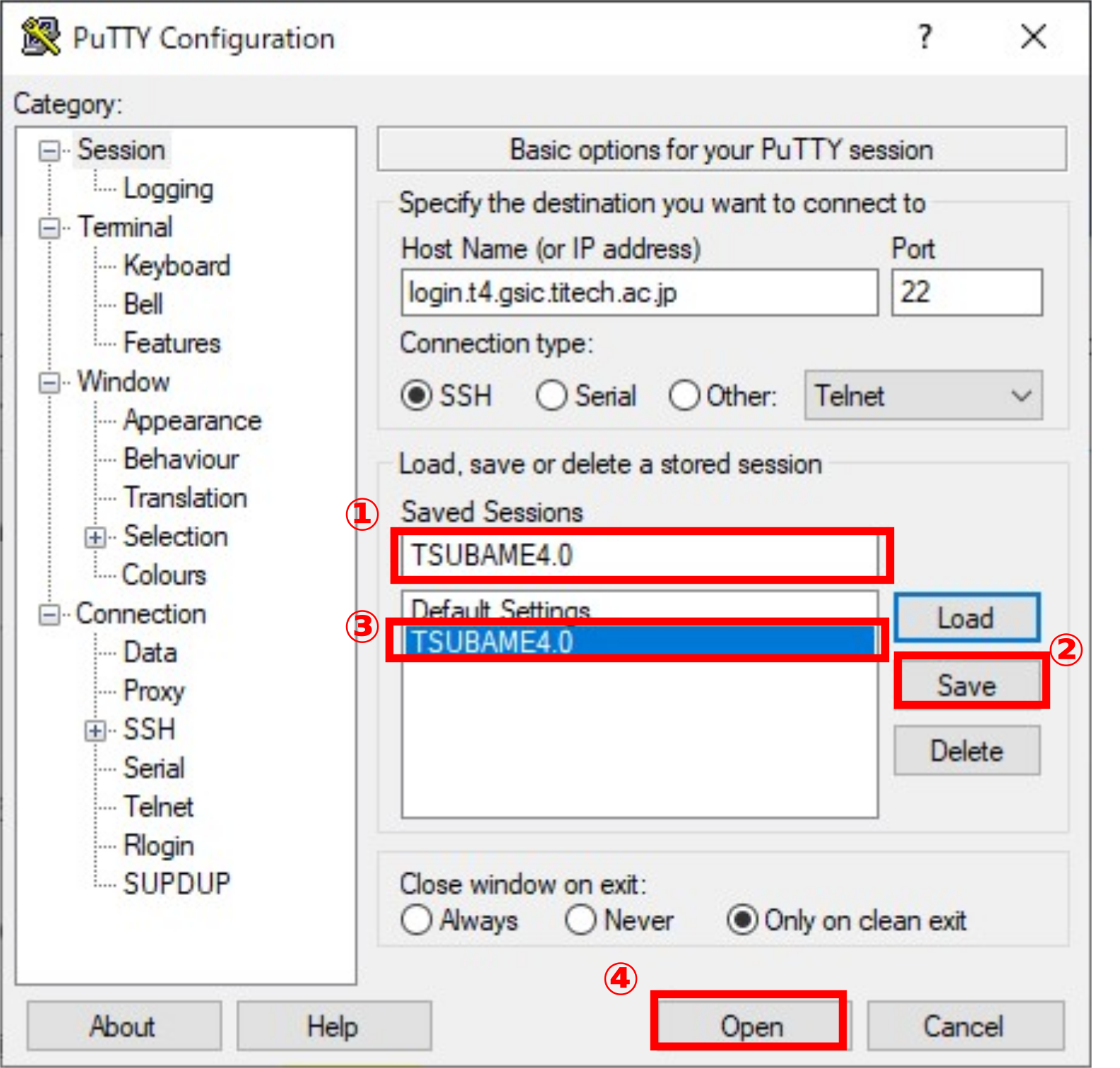
- Start PuTTY. "PuTTY Configuration" will start.
- Select "Session" in the left pane and enter the host name of the login node in the red frame. Please enter login.t4.gsic.titech.ac.jp.
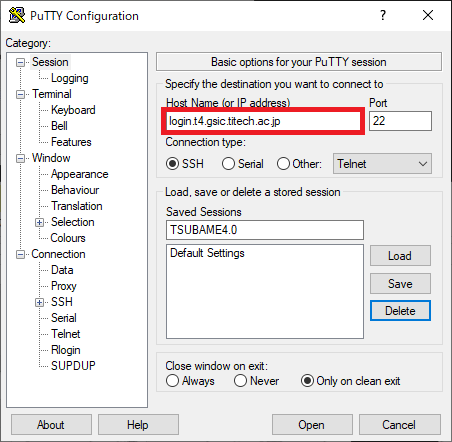
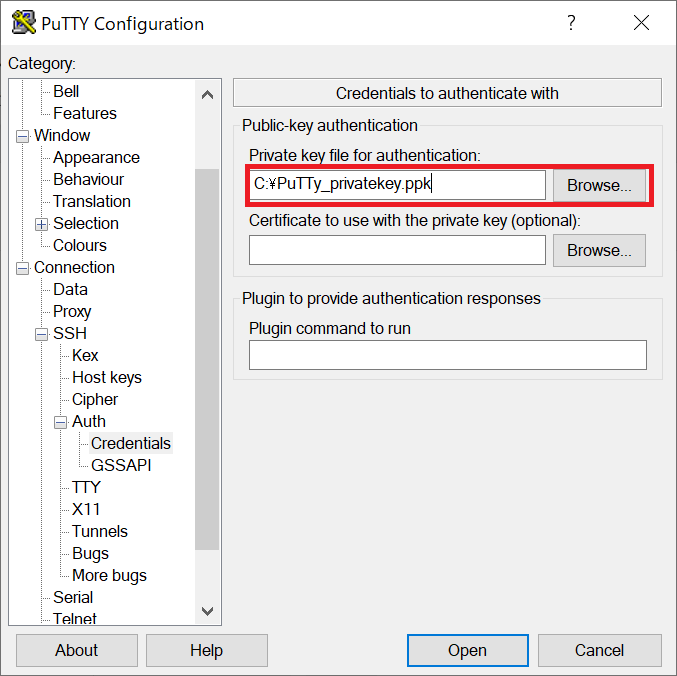
- Select “Connection” - “SSH” - “Auth” - “Creditials” in the left pane and specify the “private key” in the red frame.
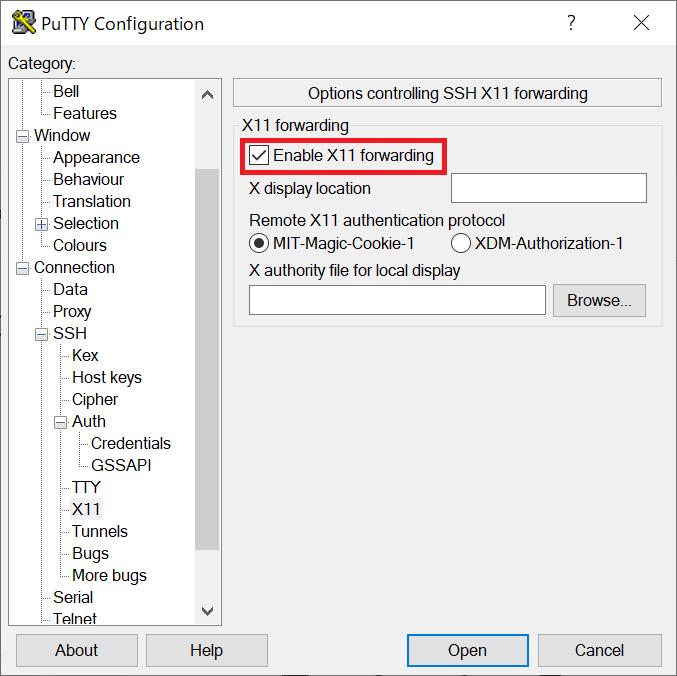
- If you want to use X forwarding using interactive nodes, select “Connection” - “SSH” - “X11” in the left pane and check the red box.
- Select “Session” in the left pane.
Give an arbitrary name to the (1) section and press “Save” (2) to save the settings made in 2. through 4.
To login to the login node, select the saved settings (3) and press “Open” (4).
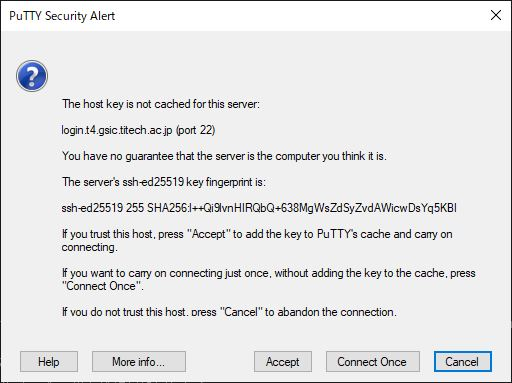
- "Security Alart” will be displayed only when connecting for the first time. Check the contents and if there are no problems, press “Accept”.
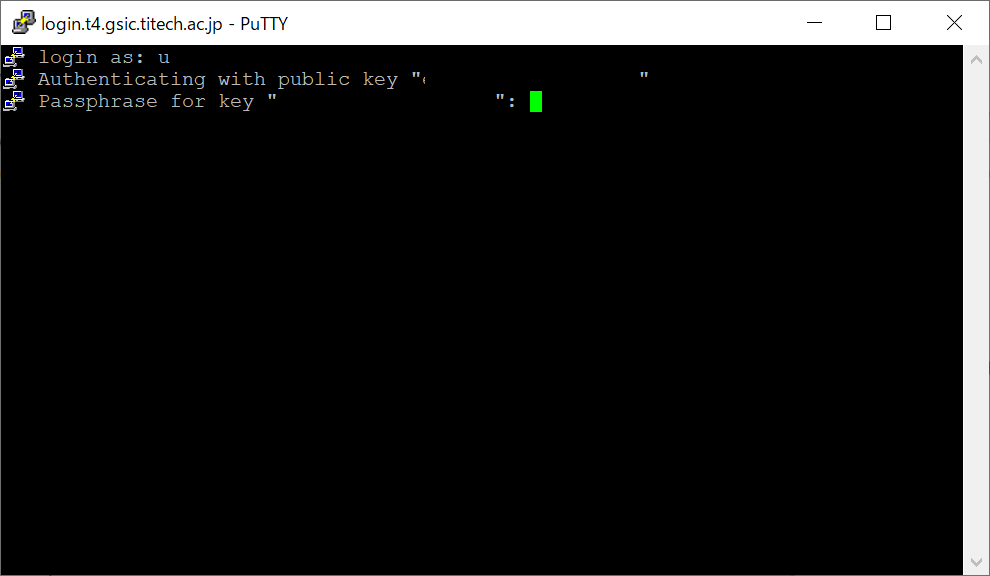
- The login screen will appear.
In “login as,” enter your TSUBAME login name (beginning with “u”).
In “Passphrase for key,” enter the passphrase you specified when creating the key pair.
How to create an SSH key pair in Linux/Mac/Windows(Cygwin/OpenSSH)
Warning
If your SSH private key is leaked, your account will be misused by the third-party. Please secure your private key with setting the passphrase.
Info
TSUBAME4.0 login node cannot be connected with RSA key (SHA-1). ecdsa key or ed25519 key is recommended.
SSH key pair creation method in Linux / Mac / Windows (Cygwin or OpenSSH) is as follows.
Please check man ssh-keygen command for key type difference.
There are correspondence / unsupported types depending on the version of openssh.
ecdsa key type:
[yourPC]$ ssh-keygen -t ecdsa
ed25519 key type:
[yourPC]$ ssh-keygen -t ed25519
When you execute one of the above commands, you will be asked for the save location as follows.
If there is special circumstance to avoid, such as the same filename is already used for other purpose, just press Enter key to use the default value.
(If you are already using SSH key pair for other sites, you can reuse the same file for TSUBAME)
Generating public/private <keytype> key pair.
Enter file in which to save the key <$HOME/.ssh/id_keytype:> (No need to type filename)[Enter]
Then you will be prompted for a passphrase, so enter it.
Enter passphrase (empty for no passphrase): (Set passphrase; What you type will not appear in screen) [Enter]
Re-enter your passphrase for confirmation.
Enter same passphrase again: (Enter the same passphrase again for confirmation; What you type will not appear in screen) [Enter]
A key pair is created and saved to two files. The upper line shows the location of private key, and the lower line shows that of public key. Register the public key via TSUBAME portal.
our identification has been saved in *$HOME/.ssh/id_keytype*
Your public key has been saved in *$HOME/.ssh/id_keytype* .pub.
The key fingerprint is:
SHA256: *random number:username@hostname*
The key's randomart image is:
(鍵Some text specific to the generated key pair will be shown)
Check the file with the following command.
[yourPC]$ ls ~/.ssh/ -l
drwx------  2 *user* *group*  512 Oct 6 10:50 .
drwx------ 31 *user* *group* 4096 Oct 6 10:41 ..
-rw-------  1 *user* *group*  411 Oct 6 10:50 *private_key*
-rw-r--r--  1 *user* *group*   97 Oct 6 10:50 *public_key*
If the permissions are incorrect, correct them with the following command.
[yourPC]$ chmod 700 ~/.ssh
[yourPC]$ chmod 600 ~/.ssh/*private_key*
Port forward configuration for each terminal software
How to configure port forwarding for each terminal software as follows.
Please try the followings with allocating a compute node by qrsh/qsub.
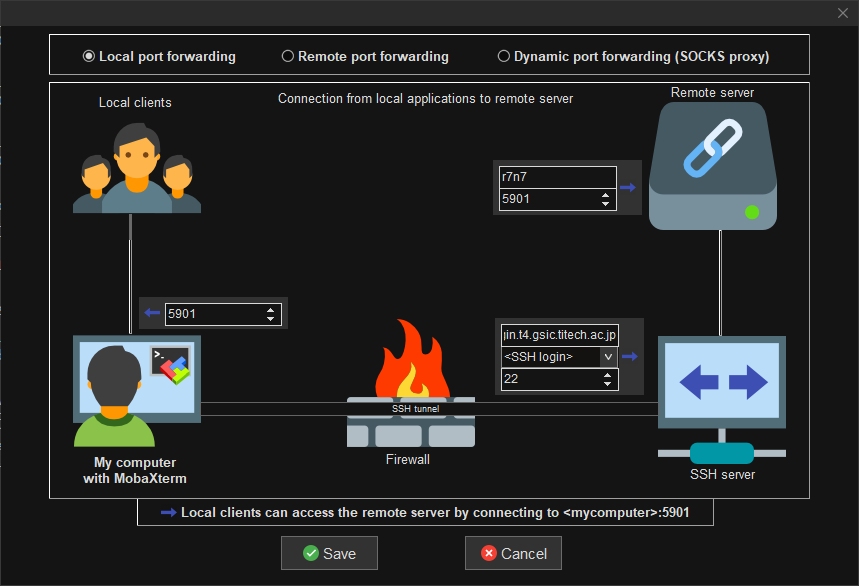
As an example, suppose a compute node r7n7 is allocated, and connect local PC port 5901 to r7n7 port 5901.
1. MobaXterm
Tunneling -> New SSH Tunnel -> My computer with MobaXterm, input 5901 into "Forwarded port", in SSH server, input login.t4.gsic.titech.ac.jp into "SSH server", input username into "defaultuser", input 22 into "SSH port", in Remote server, input r7n7 into "Remote server", input 5901 into "Remote port" and save、choose key icon under Settings tab, and start the configured tunnel
2. OpenSSH/WSL
[yourPC]$ ssh -L 5901:r7n7:5901 -i <private key> -f -N <uesrname>@login.t4.gsic.titech.ac.jp
3. PuTTY
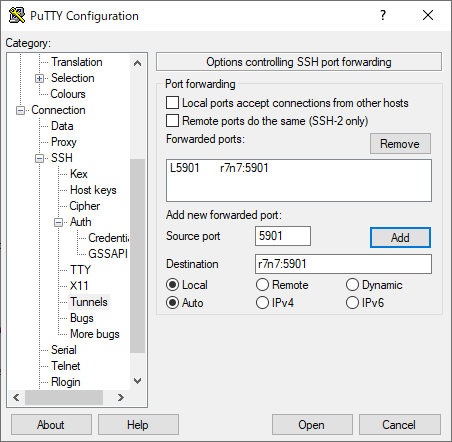
PuTTY Configuration -> Connection -> SSH -> Tunnels, input 5901 into "Source Port", r7n7:5901 into "Destination" and click "Add" and Open
4. teraterm
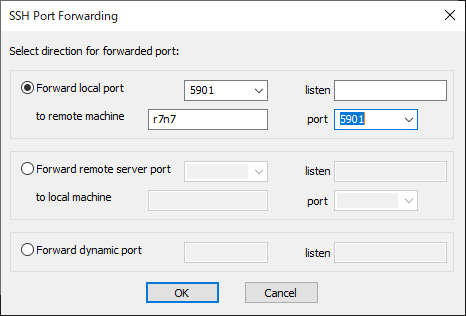
Setup->SSH forwarding->Add->input 5901 into "Forward local port", input r7n7 into "to remote machine", and input 5901 into "port" then click "OK"
FAQs about Working on the Login Node
Session suddenly disconnected while working on TSUBAME4.0
For TSUBAME4.0, session timeout is set for security measures.
Sessions that do not have any input at a certain time are disconnected.
Even if the GUI application is started up and operated, if there is no input to the terminal, it will be disconnected.
If you want to avoid this, please set keep alive on the terminal side.
Please check the user guide of the terminal for keep alive setting.
An error such as "fork: Resource temporarily unavailable" is displayed on the login node.
The login node has a limitation of 150 processes per user. Therefore, if you create a process that exceeds the limit, you will get an error like this. For more information, please refer to Please refrain from occupying the CPU in the login nodes..
How to terminate the programs executed accidentally
Terminate the program according to the following procedure when you accidentally executed a program on the login node where the program execution is prohibited.
See "How to terminate the job submitted to the batch job scheduler" for the deletion of the jobs submitted to the batch job scheduler.
I want to return the environment setting at login to the default value
The TSUBAME4.0 default files for the following environment setting files used at login are stored in the /etc/skel directory.
If you have deleted the file, or if you have edited the file but want to restore the default values, please copy these file.
.bash_logout
.bash_profile
.bashrc
.emacs
.zshrc
Example(.bashrc):
[login]$ cd ~
[login]$ cp /etc/skel/.bashrc .