5. Management of user information
In this part, you can manage user information registered to TSUBAME. You need to prepare before using TSUBAME for the first time.
5.1. User information
Log in to the system and select "Change user information" link from the side menu, the "User information change" page will be displayed.
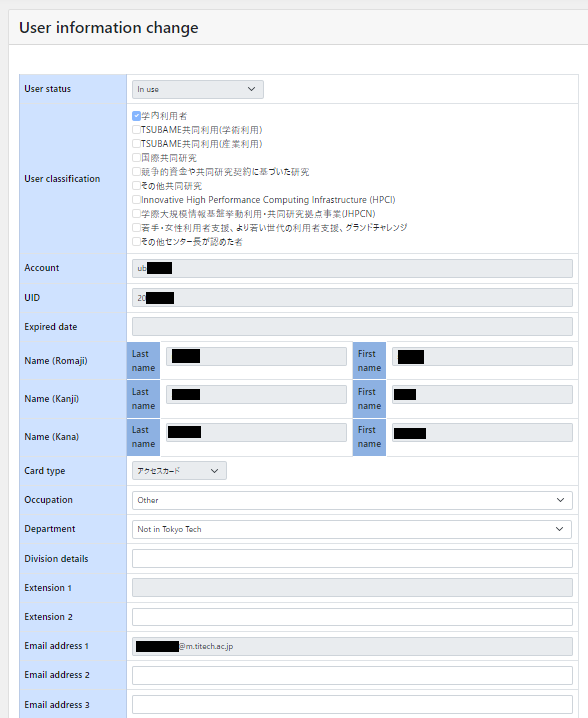
In this screen, you can refer / edit information on "user."
5.2. SSH public key registration
Warning
- Please secure your SSH private key, with setting the passphrase to lock them.
- Do not register SSH public key corresponding to the private key which is not made by you, or is not managed correctly, such as the public key of other people.
Info
TSUBAME4.0 login node cannot connect with RSA key (SHA-1) which has short key length. ecdsa key or ed25519 key is recommended for SSH key pair.
To access the login node, you need to upload the SSH public key used for login. Please prepare an SSH public key in advance. See the FAQ below for how to create an SSH public key.
- How to create an SSH key pair in Linux/Mac/Windows(Cygwin/OpenSSH)
- I'm using PuTTY(MobaXterm), What do we need to register at SSH public key in TSUBAME portal?
From the side menu, choose "Manage SSH public key."
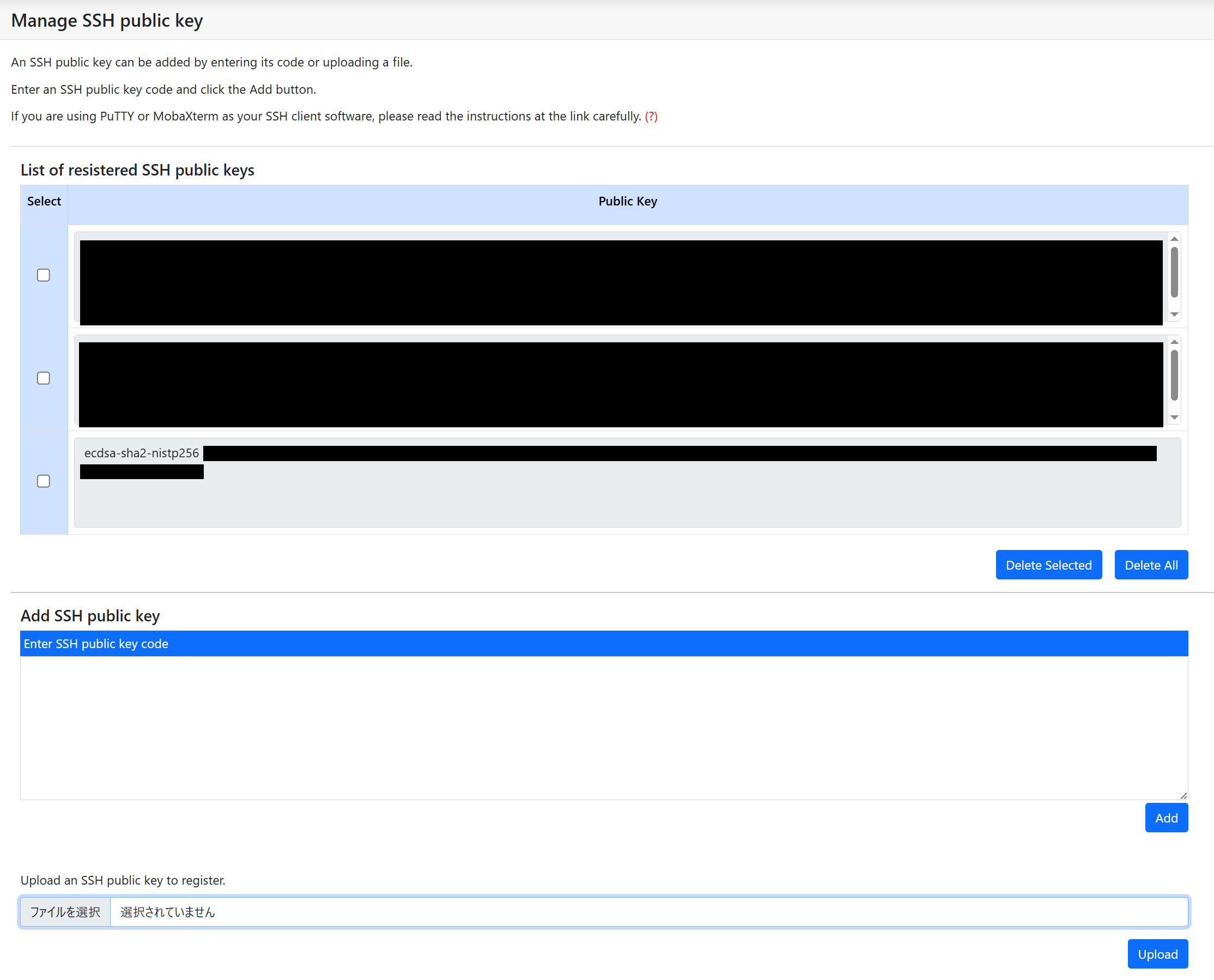
Copy and paste the contents of the public key with text and click "Add" button, or upload the file from "SSH public key file" and click "Upload".
Warning
- The file you need to paste or upload is an SSH public key. Never specify an SSH private key.
- The SSH public key registered by this function is additionally registered in the TSUBAME public key list. Already registered public key is not invalidated.
- In order to delete a registered public key, please login to TSUBAME, then edit .ssh/authorized_keys under the home directory, and delete it.
When the "Upload" button is clicked, the SSH public key is set and SSH login to TSUBAME is enabled.
5.3. How to set TSUBAME password
Set passwords here for TSUBAME storage (Fast Storage Area, and Big Storage Area) to be used for CIFS access from terminals within the university.
Info
Set a password to use the various services provided by TSUBAME.
- Use of Open OnDemand
- CIFS access from on-campus terminals
Warning
Reusing passwords is prohibited because it may lead to unauthorized access. Be sure to set a password unique to this system.
In particular, please absolutely avoid using the same password as for any other on-campus service.
Login to the TSUBAME portal and choose "Password setting" from the side menu, the "Password setting" page will be displayed.
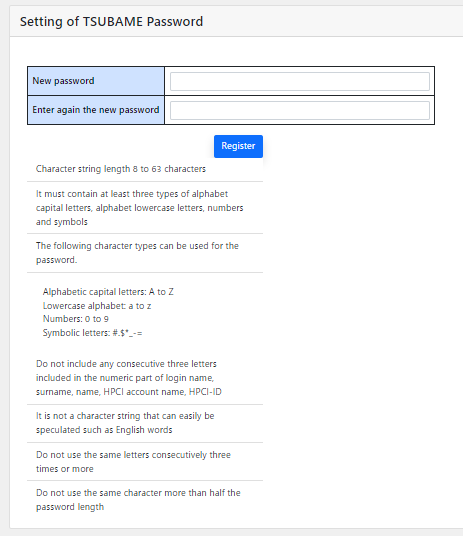
If you enter a new password here and click "Register", the password will be set.
The password conditions are as follows.
- String length : 8 to 63 letters
- It must contain at least 3 types of alphabet capital letters, alphabet lowercase letters, numbers and symbols.
- The following character strings can be used for the password.
- Uppercase Latin alphabet:
AtoZ - Lowercase Latin alphabet:
atoz - Numbers:
0to9 - Symbolic letters:
#.$*_-=
- Uppercase Latin alphabet:
- Do not include any three consecutive letters included in the numeric part of login name, surname, name, HPCI account name, HPCI-ID.
- It should not be an easy-to-guess character string such as English words.
- Do not use the same letters consecutively three times or more.
- Do not use the same character more than half the password length.
You can also change the password in the same way.
5.4. Email address settings
You can register up to three Email addresses for notifications on TSUBAME portal.
- Email address 1
This is the Email address registered when you applied for your TSUBAME account. As a general rule, it cannot be changed. - Email address 2,3
This is an Email address you can set yourself. Please configure it from User information.
As a general rule, all TSUBAME portal-related Emails are sent to all registered Email addresses. However, please note that certain Emails such as the Open OnDemand Email verification access code are sent only to "Email address 1".
Info
You cannot change Email address 1 on your own. If you need to change it, please refer to the information below.
For On-Campus Users
Since your account information is linked to your student ID, Email address 1 cannot be changed. Please consider using an Email forwarding service.
For Off-Campus Users
Email address 1 must be an email address issued by your institution and can only be updated by the Center for Information Infrastructure after verification.
If you need to change it for reasons such as a change in your institutional email address or a transfer to another institution, please contact us via the Contact Us form and provide the following information:
- New Email address
- Reason for the change