Open OnDemand
Info
The command line examples on this page use the following notation
[login]$ : login node
[rNnN]$ : compute node
[login/rNnN]$ : login node or compute node
[yourPC]$ : environment from which the login node is connected
How to Use Open OnDemand
You can log in to Open OnDemand via this link.
You can also log in from the top menu of this site or the TSUBAME Portal menu.
For information on how to use Open OnDemand, please refer to the Open OnDemand User's Guide.
How to Log In to Open OnDemand
Open OnDemand supports two login methods: email-based authentication and security key-based authentication.
Email Authentication
No prior setup is required to use email authentication. For details, please refer to Login by Username/Password/Email Authentication.
Authentication Using a Security Key
To use security key authentication, you must register your security key in advance. For details, see Login to Access Management Server and Security device registration to Access Management Server. For login instructions, see Login by Security Keys.
Failed to log in to Open OnDemand
If you are unable to log in to Open OnDemand, please try the following.
Info
As of September 2026, you no longer need to log out of the Portal for Science & Engineering Field, Institute of Science Tokyo.
Please try logging in using your browser's incognito mode. If you can log in, please clear your browser's cookies and cache and try logging in again.
We strongly recommend deleting everything, but if you need to specify a domain, please select one of the following options. (The scope of items to be deleted becomes broader as you go down the list.)
*.t4.cii.isct.ac.jp
*.cii.isct.ac.jp
*.isct.ac.jp
- If you cannot login using Incognito Mode
Please contact us via "Contact Us". When doing so, please include the following details in your inquiry: "Browser name," "Error message," "Steps to reproduce the error," and "When the error started occurring."
Errors Occurring While Using Open OnDemand
If you encounter an error while using Open OnDemand, please try the following.
-
First, run “Restart Web Server.” For details, please refer to Restart Web Server.
-
If you see a “Request Header Or Cookie Too Large” error, please delete the cookies associated with the https://ood.t4.cii.isct.ac.jp address.
For instructions on how to delete cookies, please refer to your browser's help section or similar resources.
400 Bad Request
Request Header Or Cookie Too Large
nginx
Errors Occurring While Using Interactive Apps
If you encounter an error while using Interactive Apps, please try the following steps depending on the application.
TSUBAME Desktop (xfce)
- TSUBAME Desktop fails to launch or crashes after launching
If this issue occurs, the configuration files may be corrupted. Please delete the ~/ondemand directory.
(The ~/ondemand directory is automatically generated when TSUBAME Desktop starts. Deleting it usually has no adverse effects. Please note that if you have edited the files in this directory yourself, we cannot provide support for this issue.)
Jupyter
- Jupyter fails to launch or crashes after launching
If this issue occurs, the configuration files may be corrupted. Please delete the ~/.jupyter directory.
(The ~/.jupyter directory is automatically generated when Jupyter starts. Deleting it usually has no adverse effects. Please note that if you have edited the files in this directory yourself, we cannot provide support for this issue.)
code server
MATLAB
Accessing Login Nodes Using Open OnDemand
You can log in to a login node via a terminal using the TSUBAME Shell Access feature of Open OnDemand. For details, please refer to Login to TSUBAME.
You can also perform basic file operations using the GUI. For details, please refer to File operations.
Accessing a compute node using Open OnDemand
When using Open OnDemand's Interactive Apps, applications launch on a compute node. There is no need to log in to the compute node or submit a job separately.
You can check the name of the compute node you are using in the “Host” field of the session displayed after Launching Applications.
I want to transfer data between my local machine and TSUBAME using Open OnDemand.
You can upload and download files via the GUI. For details, please refer to File operations.
I want to use multiple workspaces on Open OnDemand's TSUBAME Desktop(xfce)
Open OnDemand's TSUBAME Desktop provides 4 workspaces by default.
You can switch between them by using the cells in the upper right corner of the screen (red framed area).
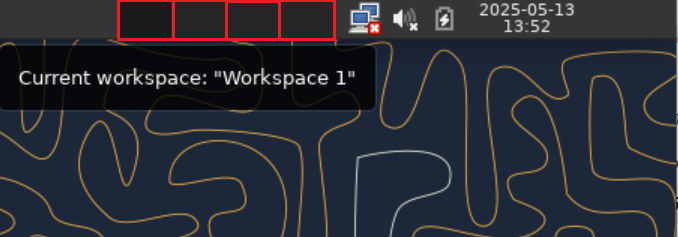
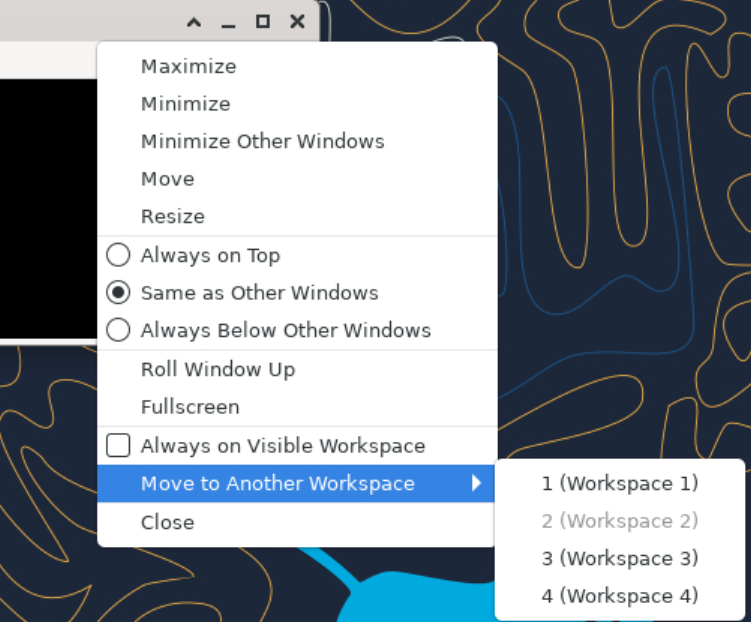
To move a particular window to another workspace, select the toolbar, and from the right-click menu, select "Move to Another Workspace".
I want to load modules (ex: module load cuda) on Open OnDemand Jupyter(ipykernel)
On the kernel(ipykernel) available on Jupyter, it is not possible to execute module load.
To solve this problem, we introduce a method to create and register a virtual environment with necessary modules loaded.
Please refer to Registering a virtual environment on Jupyter (ipykernel)